

Embedding content in your messages
How to add an Embed block
Section titled “How to add an Embed block”Just as any message block, click the + icon and select the Embed block from the dropdown list.
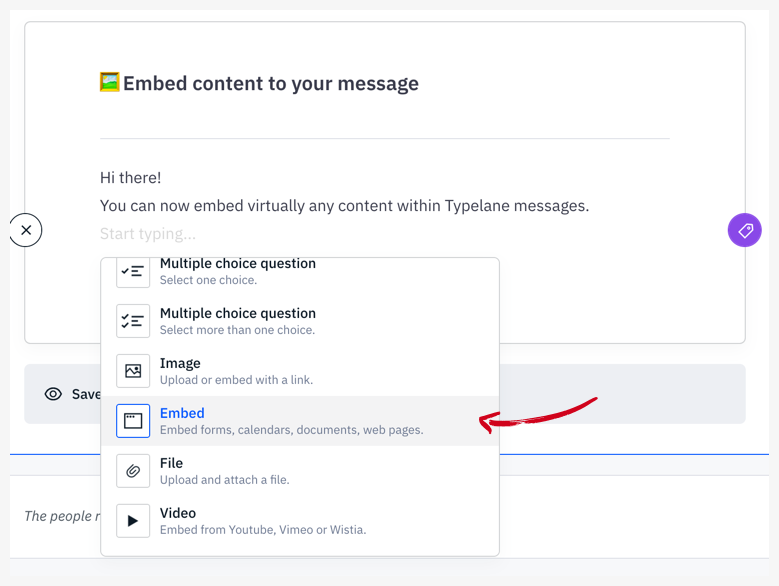
In the menu that appears, paste the content’s URL or embed link.
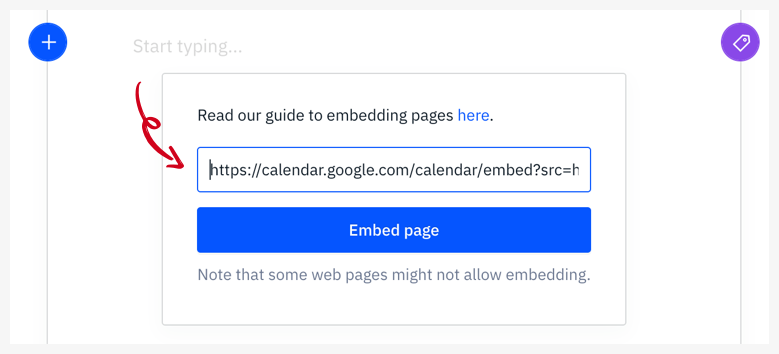
Voila 🎉The content is now embedded into the page and will be visible in the portal when scheduling the journey. You can resize the content just like an image and remove it by selecting it and hitting backspace.
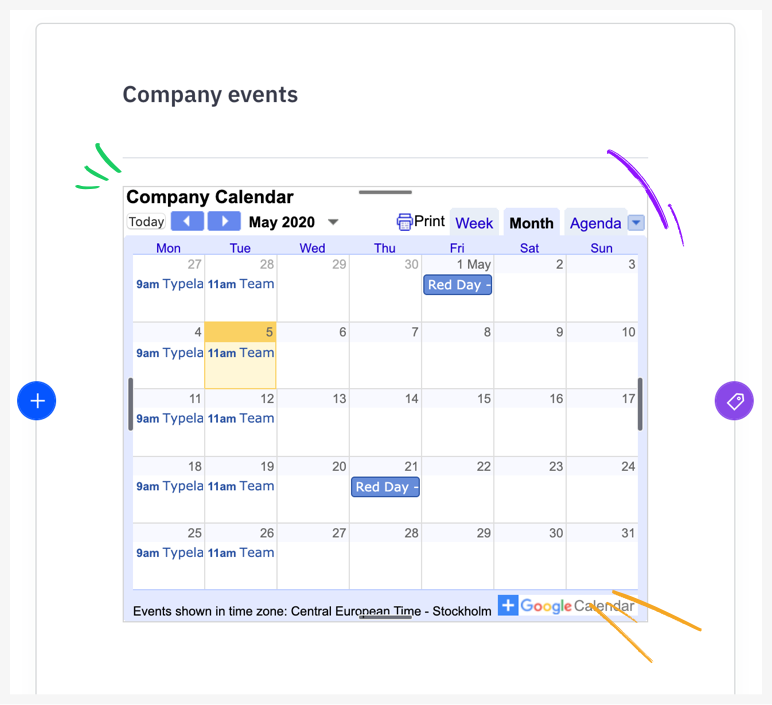
⚠️Note: Some websites prohibit their content from being embedded elsewhere. If you receive a Failed to Load error, that’s why. See some of use cases below for inspiration!
Examples & use cases
Section titled “Examples & use cases”Many sites allow sharable content via an iFrame. We’ve listed some examples below to help you get started.
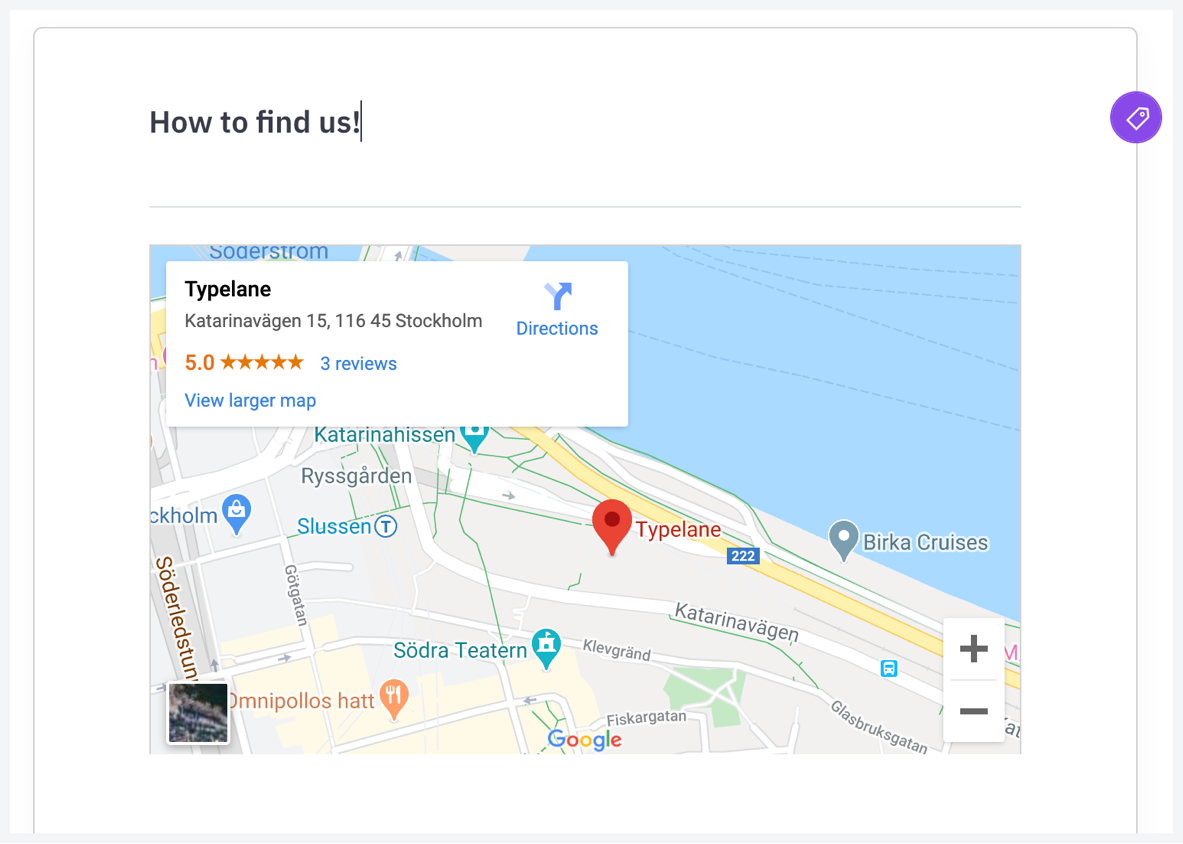
Google Maps
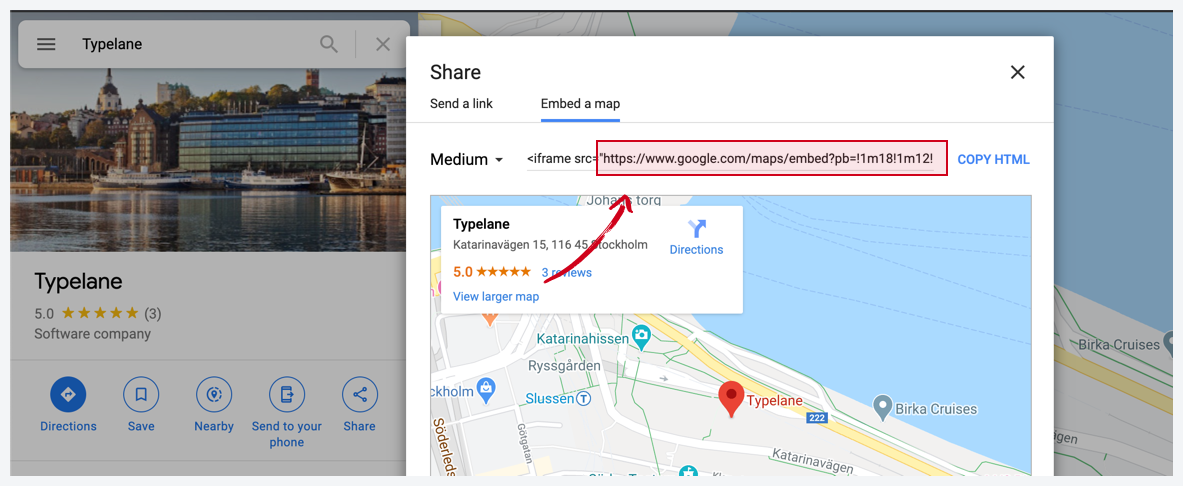
Section titled “Google Maps”In order to embed a Google Map location, search for that location in Google Maps, click the Share button and copy the URL in the iFrame snippet that shows up. Paste this URL into the embed menu in your Typelane message.
Google Drive folder
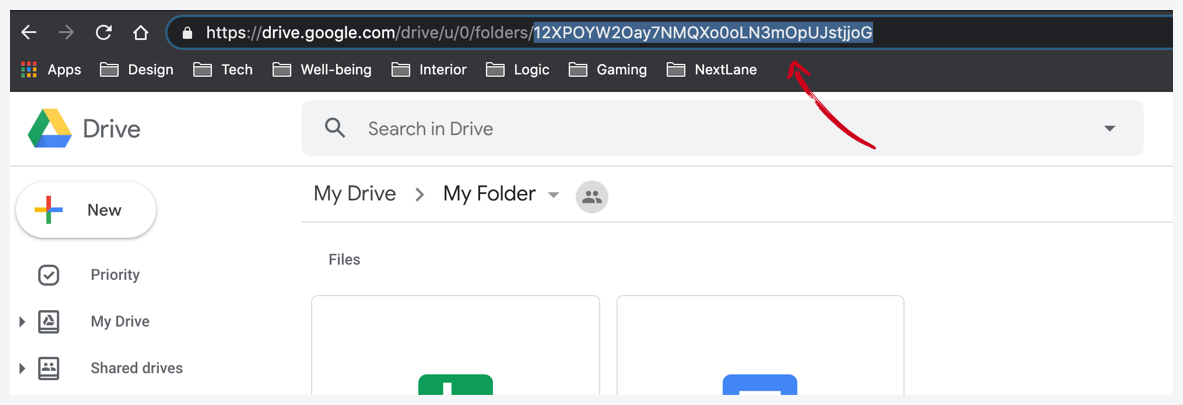
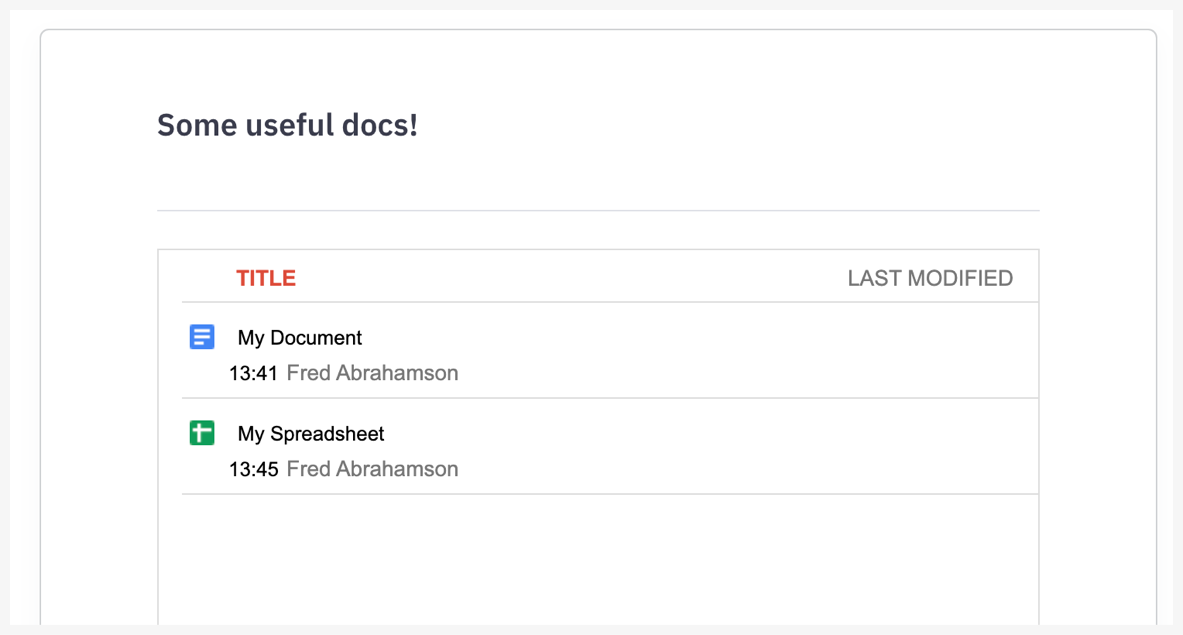
Section titled “Google Drive folder”If the recipient has access to the Drive folder or if it’s a public folder you can embed it by pasting this link.
https://drive.google.com/embeddedfolderview?id={{YOUR_FOLDER_ID}}#listJust change the {{YOUR_FOLDER_ID}} part with your folder’s ID which you can find in the URL when you’re on the folder’s page.
Google Calendar
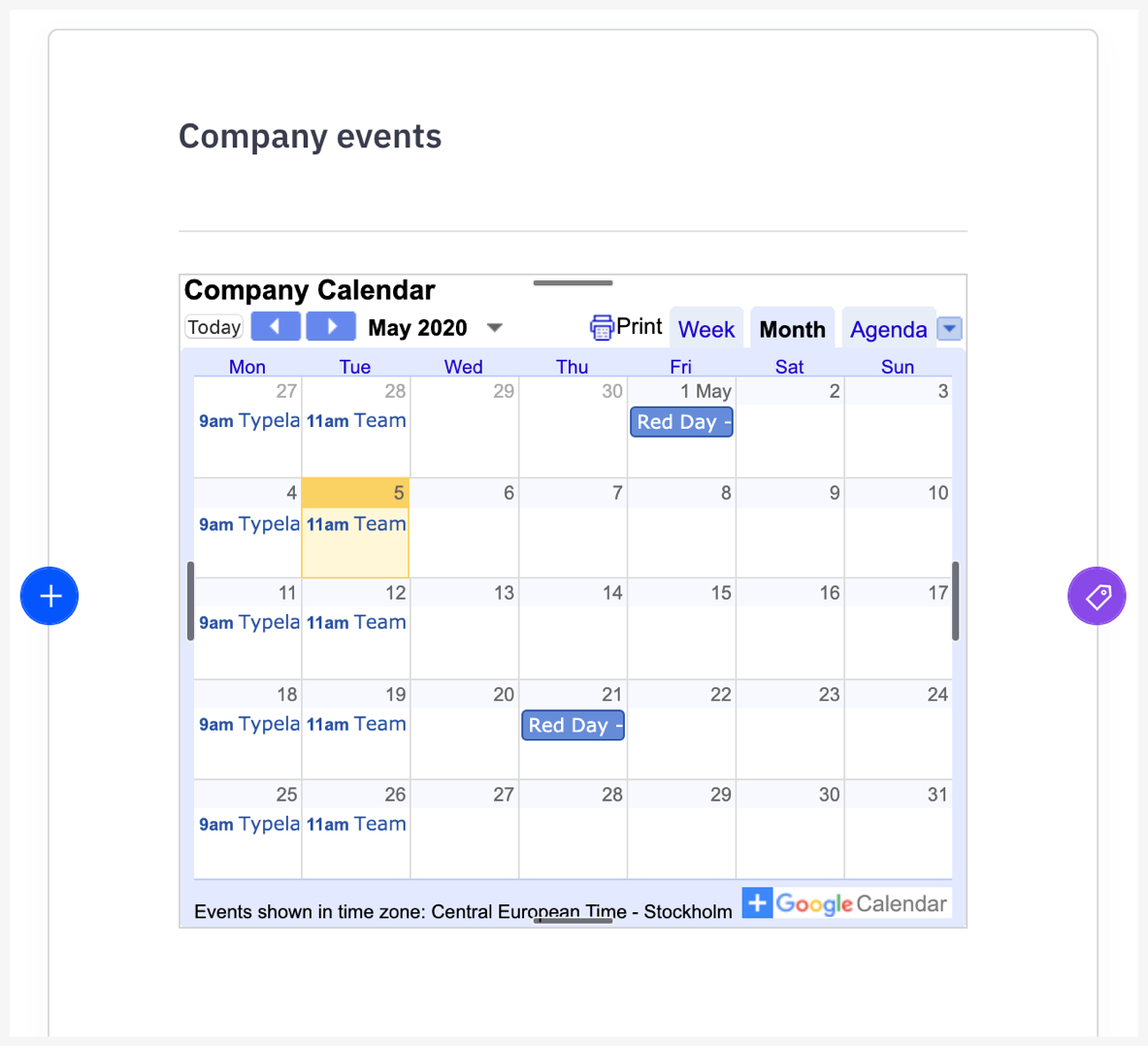
Section titled “Google Calendar”Embed a public calendar by going to the calendar settings.
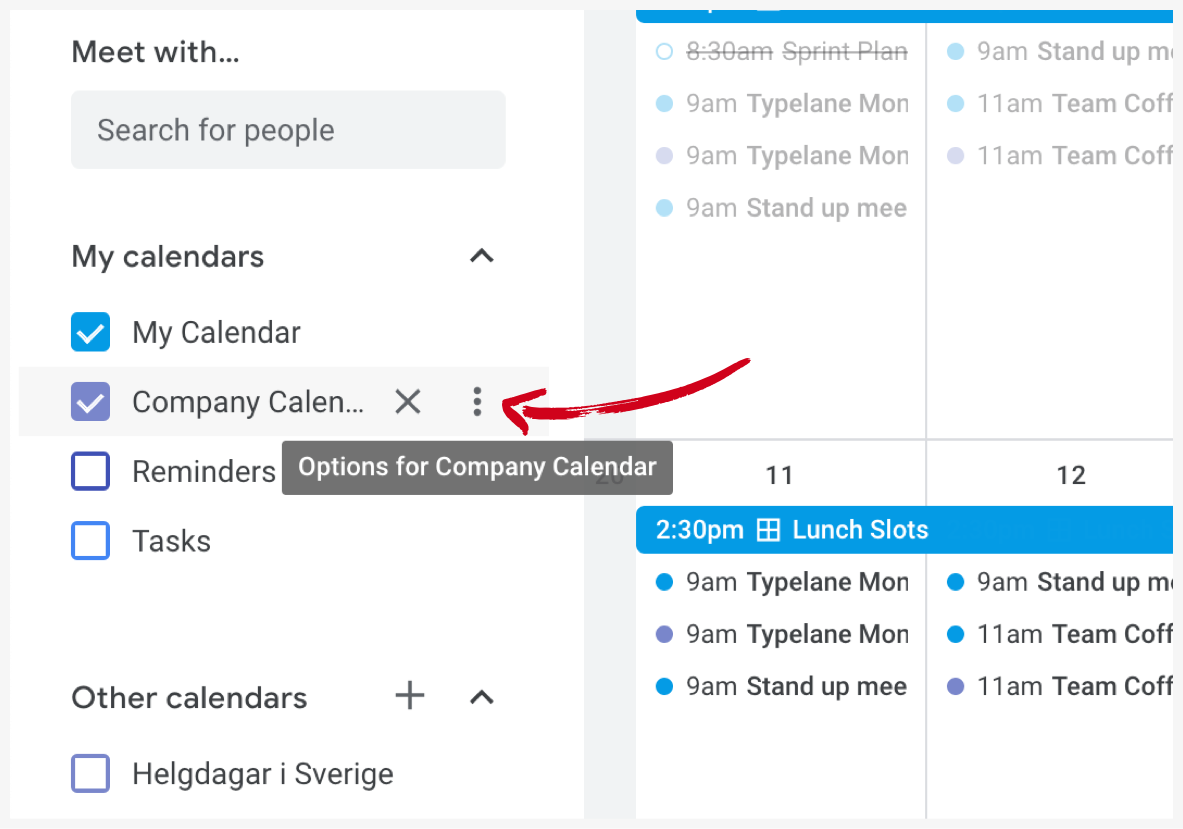
Copy the Public URL for the calendar and paste it in the embed menu in Typelane.
Google forms
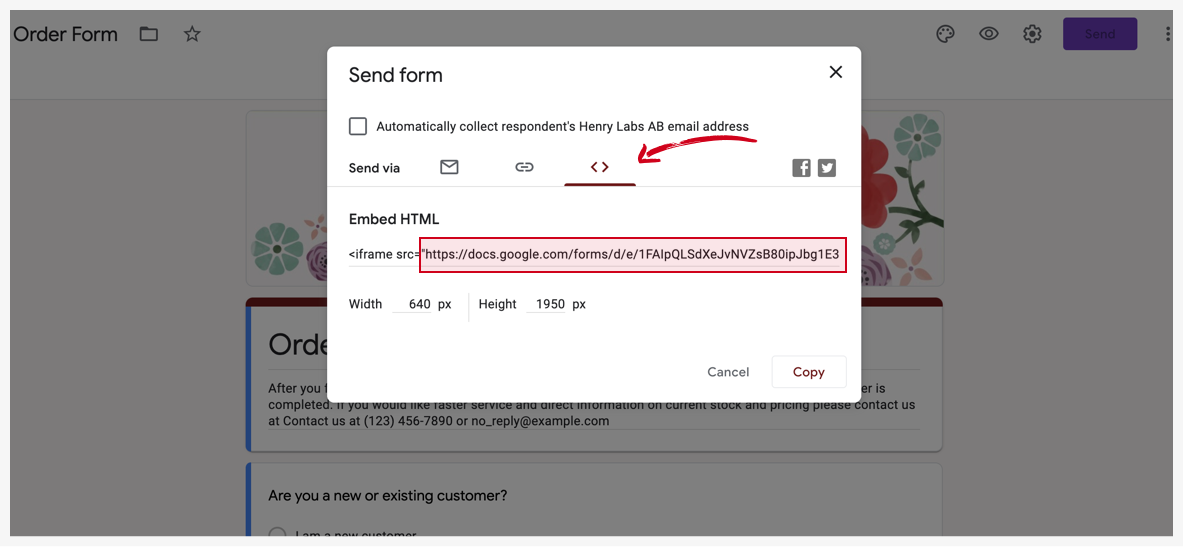
Section titled “Google forms”Go the your Google Form and click the Send button. A menu will show up where you can choose the iFrame option and copy the URL in the iFrame tag. Paste that URL in the embed menu in Typelane.
There are plenty of more stuff you can achieve with the embed block and we’ll keep this list updated continuously but if you have any questions - feel free to reach out to our support team who will gladly help you out!